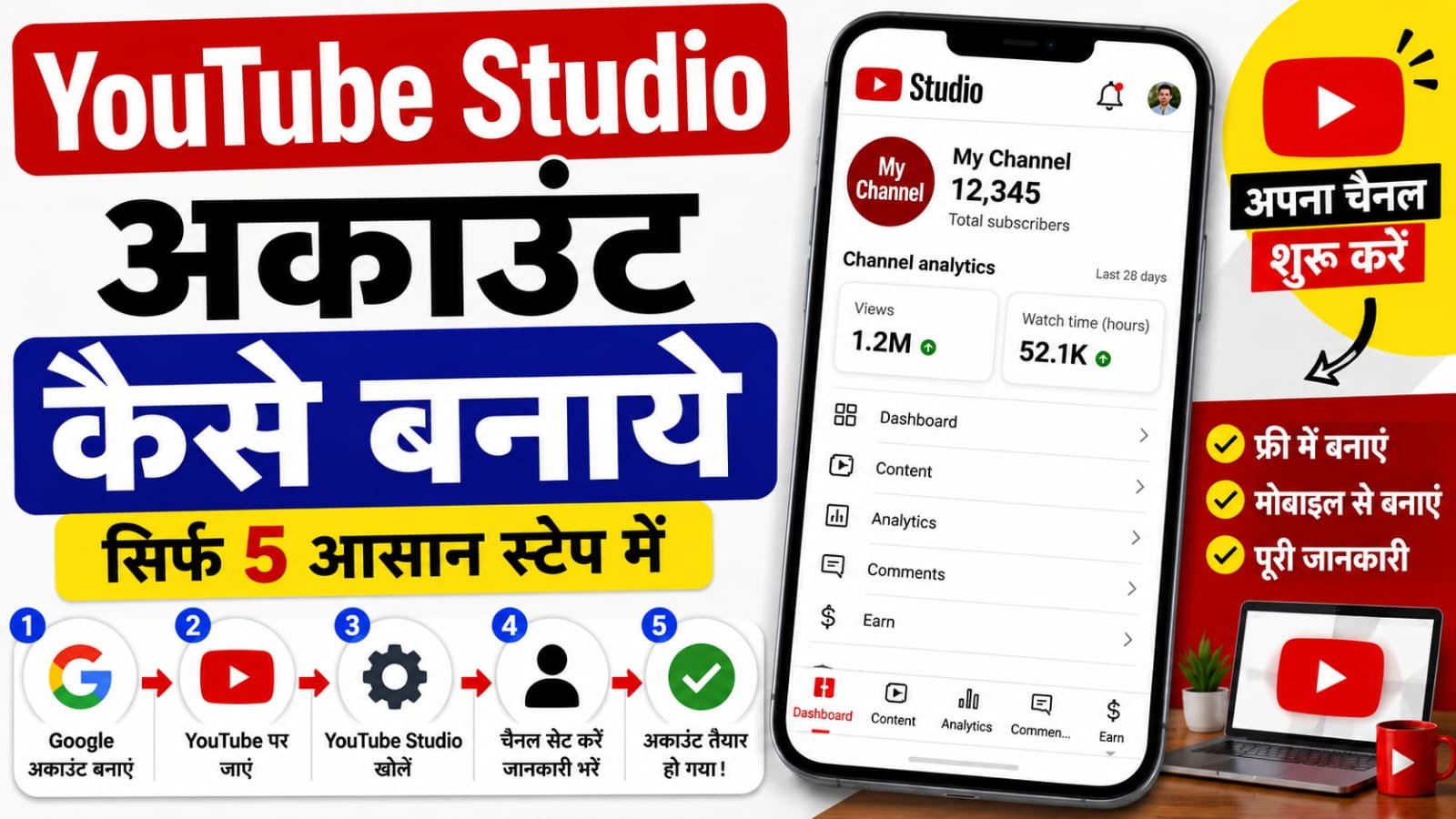
Namskar dosto YouTube Studio ek channel management tool hai for content creators. Ye aapko upload, edit, publish, aur monitor karne mein help karta hai. Anyone with a YouTube account can access YouTube Studio. YouTube Studio is completely free. Accounts par koi charges nahi hain.
Pehle Google Account Banao
YouTube channel banane se pehle aapko Google Account ki zaroorat hai. This is the first step. Without this, you cannot create a channel.
Kaise banayein:–
- Google.com par jao
- Top right mein “Sign in” click karo
- “Create account” select karo
- Personal details bharo (name, date of birth, gender)
- Gmail address aur password create karo
Important: Real date of birth enter karo — later age-related features ke liye kaam aata hai.
YouTube Studio Account Kaise Banayein
Channel banane ke do tareeke hain — personal aur business/brand.
Method 1: Personal Channel
Ye channel ek person manage kar sakta hai.
Steps:–

- YouTube par sign in karo
- Top right mein profile picture click karo
- Settings select karo
- Account section mein jao
- Add or manage channel(s) choose karo
- Create a channel click karo
- Profile picture upload karo
- Channel name aur handle likho
- Create channel click karo
Channel banane ke baad YouTube automatically aapka dashboard show karega.
Method 2: Brand Account (Business/Team Channel)
Agar multiple people manage karein toh Brand Account use karo. Isme channel name Google account name se alag ho sakta hai.
Steps:–
- Channel list mein jao
- New channel create karo
- Brand account use karo ya create karo
- Profile photo, name, handle set karo
- Create channel click karo
Brand account mein aap owners aur managers add kar sakte ho.
Channel Ko Professional Kaise Banayein
YouTube Studio → Customization mein channel ko optimize karo.
Profile Picture
- Clear photo of your face use karo — viewers connect faster and retention improves
- Agar face comfortable nahi, toh high-contrast logo use karo
- Size: 800 x 800 pixels, square image
Channel Banner
- Briefly describe what channel is about
- Upload schedule ya CTA include karo (e.g., “Subscribe for weekly tips”)
- Free templates Canva par available hain
- Size: 2560 x 1440 pixels
Channel Description (Keyword-Rich)
Three questions ka answer do:
- Aap kya banayenge?
- Ye kis ke liye hai?
- Viewers kya expect kar sakte hain?
Natural keywords use karo — people ke search patterns ke hisaab se.
Channel Keywords
YouTube Studio → Settings → Channel → Basic info. Add 5-10 channel keywords that describe your content. Ye algorithm ko signal dete hain ke aap kis type ki videos publish karoge.
2-Step Verification Enable Karein
Ye step non-negotiable hai.
Kaise karein:–
- Google Account mein jao
- Security tab open karo
- 2-Step Verification ON karo
- Authenticator app use karo (SMS se zyada secure)
Protecting your account stops a nightmare morning where you wake up and your channel has been compromised.
YouTube Studio Access — Mobile vs Desktop
Desktop Access
- Browser mein studio.youtube.com enter karo
- Alternatively: YouTube homepage → profile picture → YouTube Studio
Bookmark it for quick access.
Mobile Access
- YouTube app mein bottom “Create” button → “YouTube Studio”
- Or download YouTube Studio app from Play Store / App Store
Studio app channel management ke liye better hai — comments, analytics, settings change — sab quickly ho jata hai.
YouTube Studio Mein Access Management
Agar team ke saath kaam karna hai, toh multiple people ko access de sakte ho.
Permissions add karna:
- YouTube Studio → Settings
- Permissions tab
- INVITE click karo
- Email address enter karo (Gmail account hona chahiye)
- Access type select karo (e.g., Subtitle Editor role)
YouTube Studio Ka Use — Key Sections
Dashboard: Channel performance ka quick overview
Content: Everything uploaded — videos, live streams, posts
Analytics: Detailed metrics — views, watch time, CTR, audience retention
Community: Comments reply karo, pin comments, delete spam — build trust with viewers
Quick Checklist Before First Upload
- Google Account created
- Personal or Brand channel created
- Profile picture uploaded
- Channel banner uploaded
- Keyword-rich description written
- 5-10 channel keywords set
- 2-Step Verification enabled
- YouTube Studio accessed (mobile or desktop)
2026 Pro Tips
Face use karo: Builds connection and improves retention
Natural keywords: Write for people first, algorithm second — keyword stuffing avoid karo
Mobile-first design: Profile images and banners must be legible at small sizes
Consistency: Upload regularly — consistent content is the engine of growth
Security first: Enable two-step verification before you get invested in your channel
Aaj ka action step: Google Account sign in karo. YouTube Studio kholo. Customization section mein jao — profile picture, banner, description — teeno aaj hi set karo. Comments mein batao — channel ban gaya ya process mein koi problem hai? Ye content 100% original hai, jo is request ke liye khaas taur par likha gaya hai. Sabhi steps YouTube Studio 2026 features par based hain.